
For devices belonging to users who do not have VCCS (MyReynolds) credentials, the JSR-Public network can be used to authenticate a device via SMS text message.
Connect a Wireless Device via SMS Text Confirmation
-
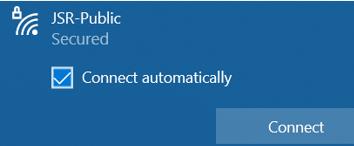
Connect to the JSR-Public wireless network to associate the wireless client. You may select the checkbox to "Connect Automatically" to save this network connection for later use.
-
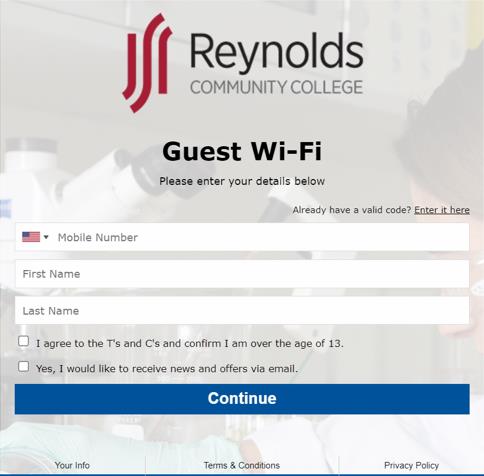
The Reynolds captive portal will display in a webpage prompting for user credentials to continue. Please enter your mobile phone number and name after accepting the Terms and Conditions to receive a confirmation text code to continue.
-
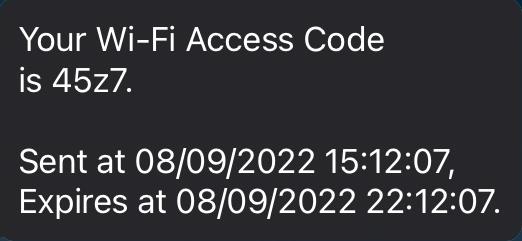
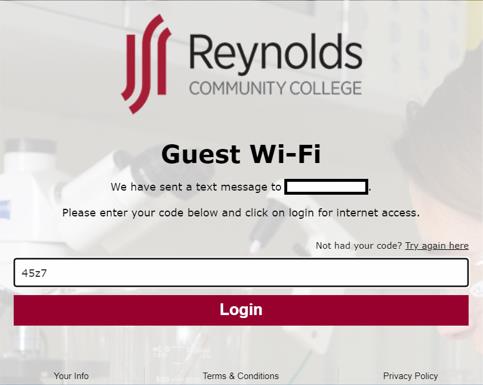
After selecting Continue, a code will be sent via SMS text message that will need to be entered on the next screen.
-
Select Login after entering the code received via text message to continue.
-
Once connected to the wireless, please test:
- Internet access
- VPN (laptops only)
-
If issues occur, please reach out to the Reynolds helpdesk for assistance.